If you have a Galaxy S25 Ultra or S25+ and you are not using Galaxy S25 Ultra or S25+ Text Message Notification Bubbles, why did you buy such an expensive phone? This feature can change the way you use your phone, and it can make your overall user experience much better. Floating text message bubbles are not just a new trend to show your friends, it saves both your time and effort and makes you feel different.
So without delay, turn on Text Message Notification Bubbles feature in your phone. If you want to enable bubbles or floating text messages, or chat heads for specific contacts, let’s see how to turn on this option.
Enable Floating Chat Bubble for Selected Contacts
- Open Messages app– First of all, open Google Messages app on your Galaxy S25.
- Tap on your profile– Tap on your profile icon in top-right corner of the app.
- Go to Message Settings– Go to Profile section and tap on Message settings option.
- Tap on Bubbles– Now tap on Bubbles section. From here you can customize your messages notifications.
- Enable it for Specific Contacts– If you want to enable this feature only for some selected contacts, then choose the second option.
- Go Back and Select Message Thread– After that go back and select message thread in which you want to enable bubbles.
- Tap on the three dots and go to Details– Tap on three dots inside the message thread and choose the Details option.
- Enable Bubble this Conversation option– Enable Bubble this conversation option in the Details section.
- Tap on Bubble Settings– Now tap on bubble settings, where your selected contact name will appear below.
Now you have successfully enabled floating bubbles for your selected message thread. Whenever a new message arrives, this bubble will float on your screen, even if you are on another screen. You can easily check it and reply without opening message app.
Turn on Chat Head or Bubble for all text messages
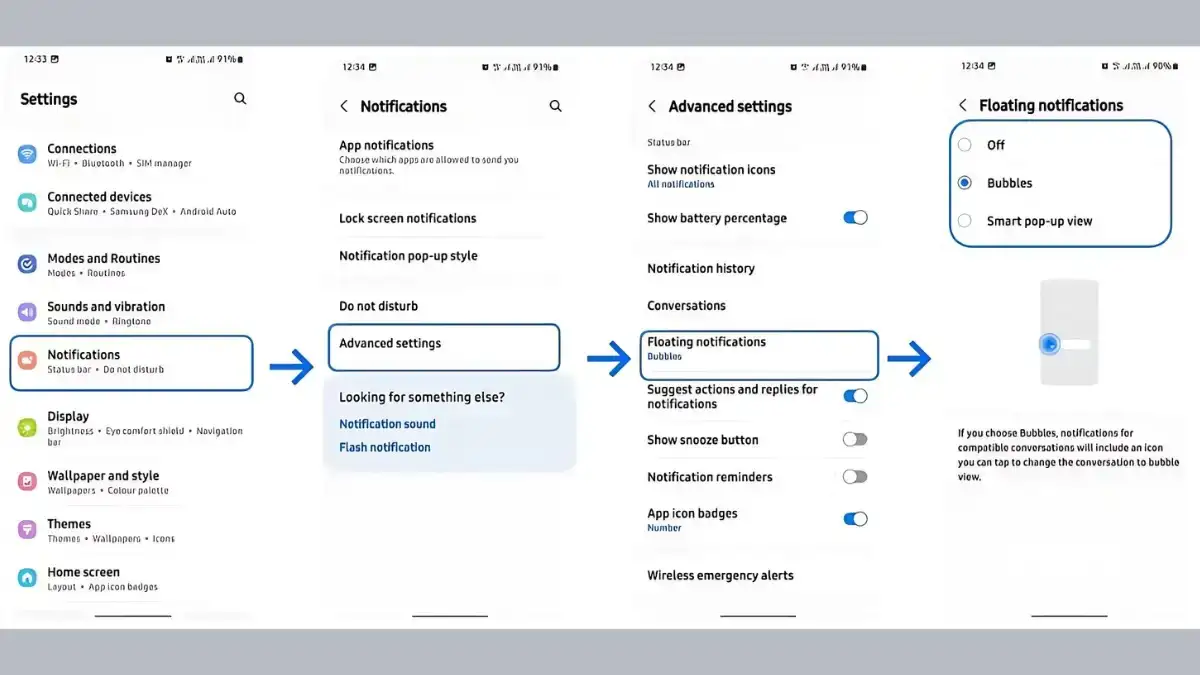
If you want to apply this bubble feature for all contacts, it is too simple.
- Go to Settings– Open your phone’s main settings app.
- Scroll to Notifications– Scroll to Notifications section in Settings and tap on it.
- Tap Advanced Settings– Then tap on Advanced settings.
- Tap Floating Notifications– Go to Advanced Settings and tap Floating notifications.
- Select Bubbles option– Now select Bubbles option.
After this, all incoming messages on your phone will appear as floating bubbles. You can easily check them and even reply directly from the bubble.
But remember that this feature only works with Google Messages. You can only use this feature if your default messaging app is Google Messages. It will not work with 3rd party apps like Messenger, WhatsApp, Telegram, Threads, Samsung Messages etc. If you are not using Google Messages, this feature will not be available.
Google Messages is very convenient to use, and it also has many other features, such as rich media support, chatbots, and many more. Therefore, for Galaxy S25 Ultra and S25+ users, setting Google Messages as default messaging app can be very useful.
Samsung Galaxy S25 Ultra or S25+ Text Message Notification Bubbles enabling is a simple and effective way to enhance user experience of your phone. Floating bubbles helps you to easily manage your messages, and you won’t miss important conversations even when multitasking on another app. If you want to make your phone even more smart and convenient, must try this feature. Thanks for stay till the end, always keep an eyes on technominda.com for tech or tech solutions related latest updates.