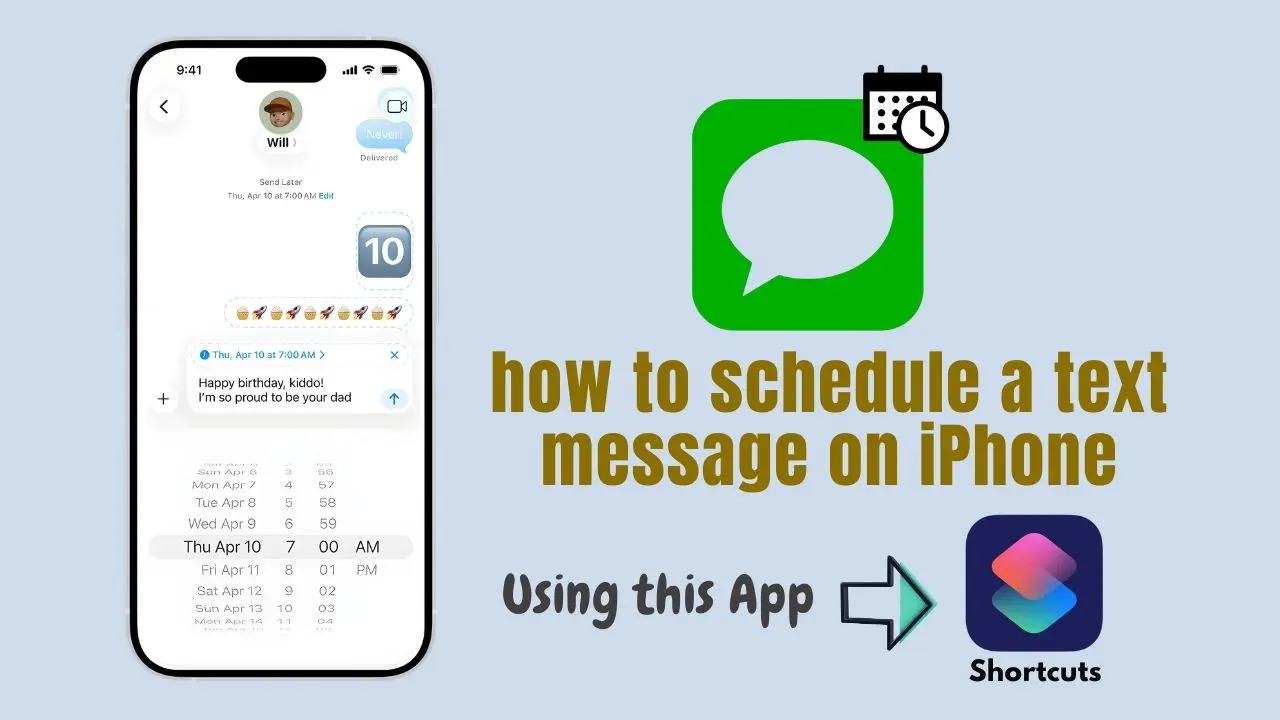
Have you ever written a message at night and thought that It would be better to send this in the morning? Or maybe you want to send birthday or anniversary wishes, but like always, you forget to send them at the exact time? That’s why text message scheduling is a very useful feature.
This option is available by default on Android, but iPhone users are often confused about how to schedule a Text Message on iPhone. Today, I will show you a very easy and practical way to schedule text messages on your iPhone.
Does the iPhone have a direct message scheduling option?
Let’s get straight to the point. The iPhone’s Messages app doesn’t have a direct Schedule Message button, but that doesn’t mean it’s impossible. Apple offers a intelligent workaround called Shortcuts app. Using this app, you can automatically send messages at your fixed time.
The Best Way to Schedule Text Messages on iPhone Using Shortcuts App
This method is official from Apple, safe, and doesn’t require any third-party apps.
Step 1: Open Shortcuts App.
You need to open Shortcuts app on your iPhone. If this app is not on your iPhone, you can download it from App Store.
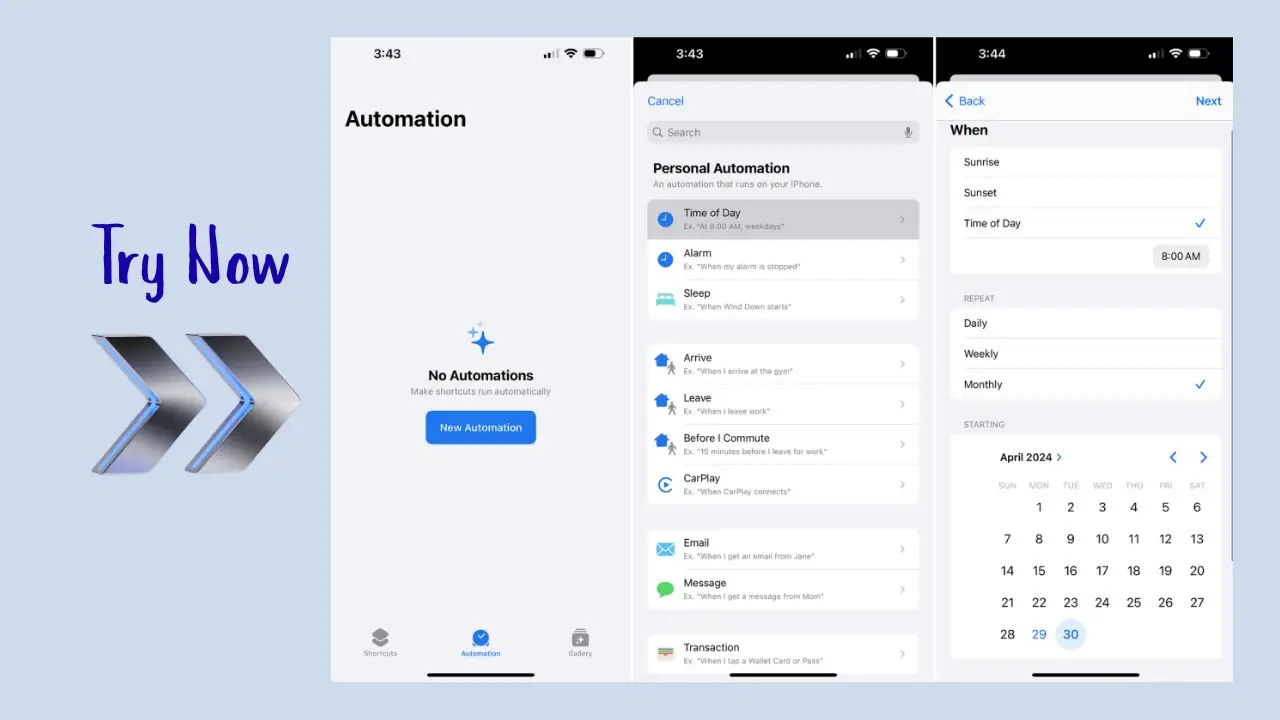
Step 2: Go to the Automation section.
You will find Automation option at the bottom of the Shortcuts app. Touch on it and then select Create Personal Automation.
Step 3: Set Time and Date.
Now choose Time of Day. Here you can set the exact time and date when you want your message to be sent. You can also set it to repeat daily, weekly, or monthly. This feature will be very useful for reminders and routine messages.
Step 4: Add a Message Action.
Now, tap on Add Action. In the search box, type Send Message. Then, type your message and select contact you want to send the message to.
Step 5: Turn off Ask Before Running option.
This step is very important. If Ask Before Running option remains ON, your iPhone will ask for confirmation, and the message will not be sent automatically. Therefore, turn this option OFF and accept the confirmation.
Step 6: Save Automation.
Finally, touch on Done. That’s it, you’re done. Your message will now be sent automatically at the selected time without you having to do anything.
When is message scheduling most beneficial?
Message scheduling isn’t just for birthday wishes. It comes in handy in many real-life situations, like
- Sending a good morning message to someone.
- For office follow-up reminders.
- Sending a message after an important meeting.
- Wishing someone on their anniversary or special day.
- For business or client communication.
Once you set it up, you can be stress-free.
Should you use third-party apps for this?
There are many apps available on the App Store that claim to offer message scheduling. However, most of these apps contain ads, require a subscription, or pose a risk to your privacy. Therefore, if you want a safe and free solution, using the Shortcuts app is the best option.
If you’re an iPhone user and wondering how to schedule text messages, you now have a clear solution. The Shortcuts app requires a little setup, but once you understand the process, it will become very easy for you.
You should definitely try this trick, especially if you need to send reminders or time-based messages.