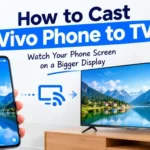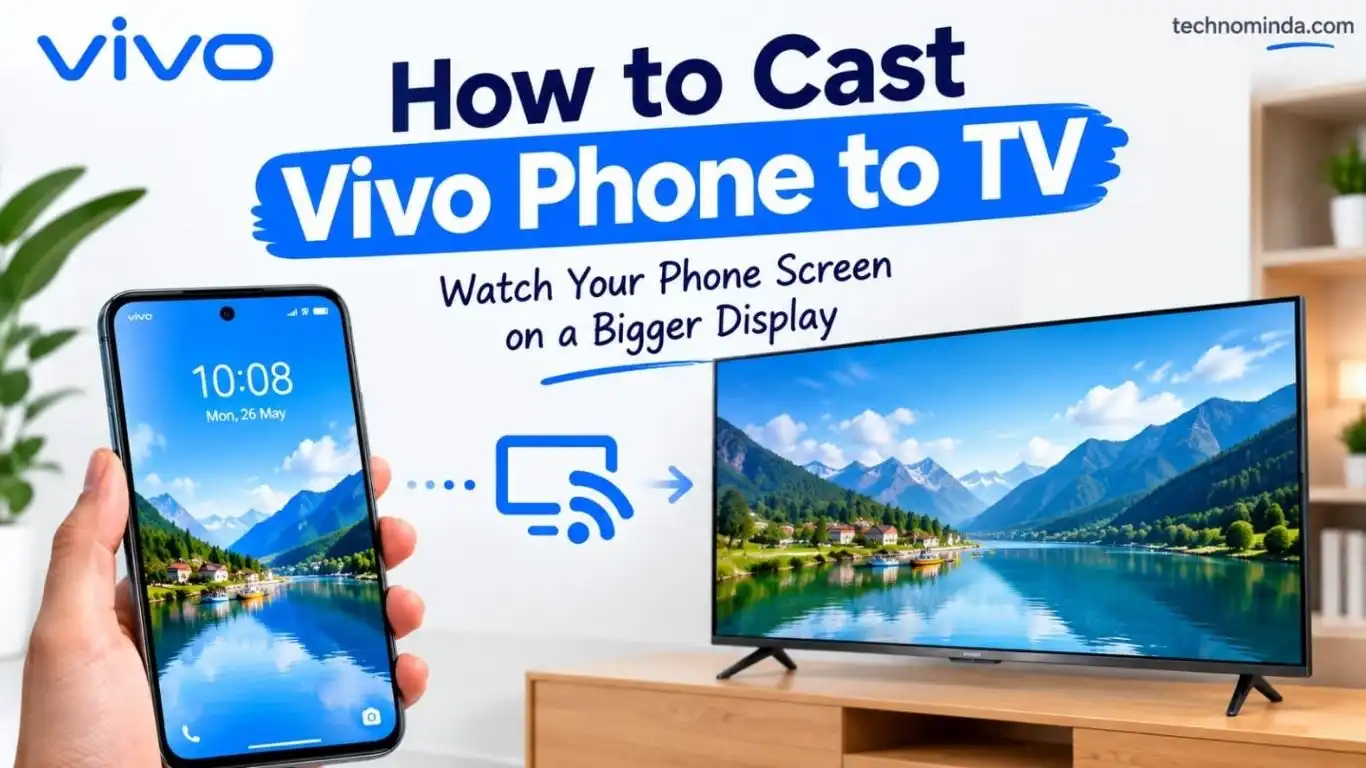
If you want to cast Vivo phone to TV and see your phone screen on your TV? It is really useful while viewing a video on your phone, or if you want to show some photos to your family, or simply want to watch something on a bigger screen then just you need to cast your phone screen to your TV.
The good thing is that you don’t have to transfer your file to your TV. You can connect your Vivo phone and TV wirelessly and mirror the phone screen. So, if you want to cast Vivo phone to TV, here is the simple process, just follow these instructions.
How to Cast Vivo Phone to TV
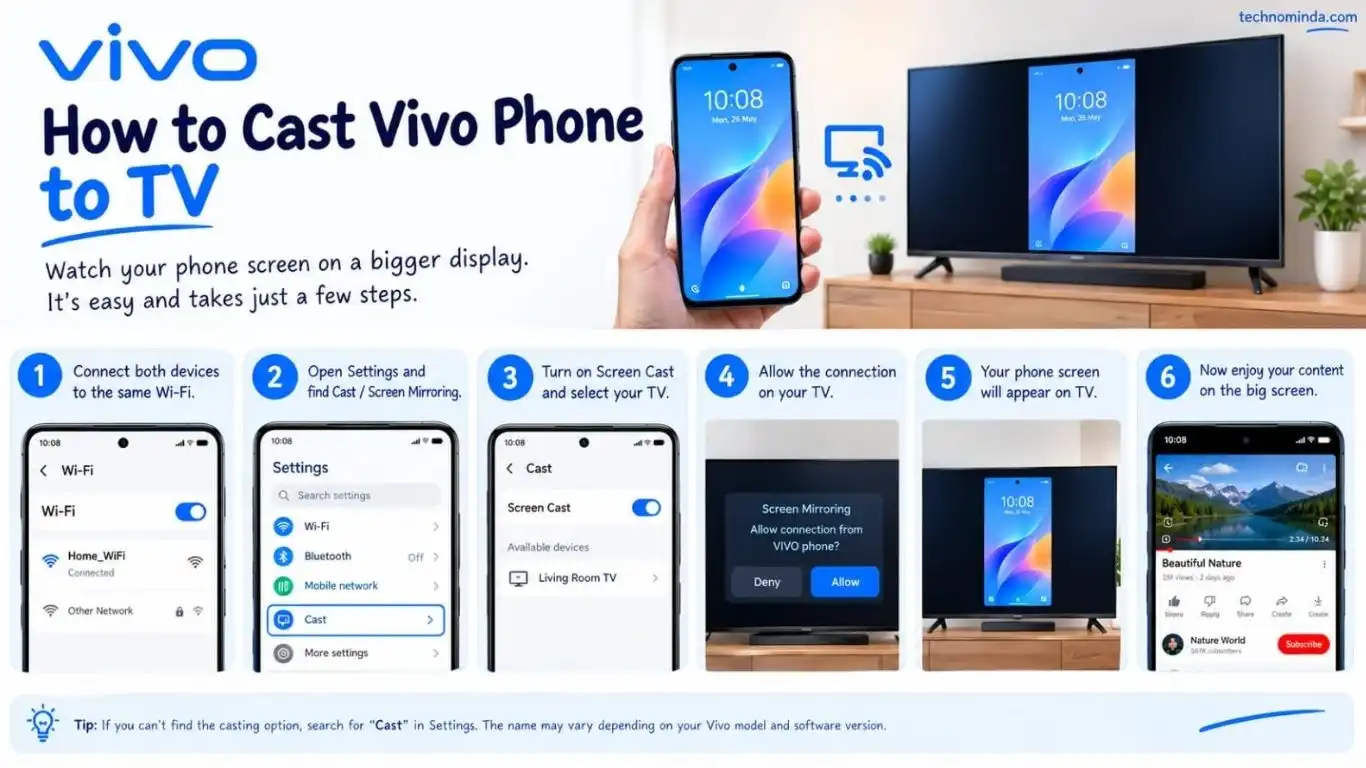
Before doing anything, connect your both devices means your vivo phone and TV to the same Wi-Fi network. For example, if your Vivo phone is connected to your personal home Wi-Fi, connect your TV with that same Wi-Fi too. After this, just open Settings on your Vivo phone. Depending on your Vivo model, the option you need may be called Screen Cast, Smart Mirroring or Cast. You can use your search box in Settings if you can’t see it.
Search for Cast. Open the option when it appears in front of you and turn it on. Your phone will start looking for available devices. When your TV name appears, tap on it. You may get a permission message on the TV, Select Allow or Accept. Then give a few seconds and your Vivo phone screen should appear on the TV. Now you can open whatever you want on your phone and see it on your TV.
Can’t Find Screen Cast on Your Vivo? Don’t worry if you can’t find any option which mentioned above. Vivo uses different names and menu locations on their different models. The FuntouchOS version can also make a difference.
The easiest way is open your Settings and search for,
- Cast
- Screen Cast
- Smart Mirroring
You can also swipe down from the top of the screen and check the Quick Settings panel. On some Vivo phones casting option is available there.
How to Cast Vivo Phone to TV for YouTube
If you only want to watch YouTube, there is no need to mirror your complete phone screen.
- Open YouTube app on your Vivo phone and play any video
- Look for Cast icon on video screen.
- Tap on it and choose your TV from the available devices.
- Then your video will play on your TV.
This is a little different than screen mirroring. With YouTube casting, video is played on the TV while you can use your phone to control it. So for YouTube, I would use this method without mirroring the entire screen.
What Is the Difference Between Cast and Screen Mirroring?
This can be confusing, especially if you are doing it for the first time. With Screen Cast or Smart Mirroring, your phone display is mirrored on the TV. That means you can show photos, videos, games, apps, and other things that are on your phone.
YouTube casting works differently. It sends YouTube video to your TV without showing everything on your phone. So choose Screen Cast when you want the complete phone screen. For YouTube videos, the Cast button in your YouTube app is enough.
Vivo Phone Is Not Finding on your TV
This is probably a most common problem you can face that start with the Wi-Fi connection. Check your Vivo phone and TV and make sure that they are connected and using the same Wi-Fi network. If they are already connected to the same network just turn Wi-Fi off on your phone and turn it back on.
Still can’t find the TV?
Restart both your phone and TV and try again. You should also check your TV settings. Some TVs have a separate Screen Mirroring or wireless display option that needs to be enabled. And there is one more possibility, your Vivo phone and TV may simply not support compatible wireless screen-mirroring technology.
Can I Cast Vivo Phone to TV Without Wi-Fi?
For normal screen mirroring, using same Wi-Fi network is the easiest option. Some phones and TVs may support other ways of connecting, but this depends on the devices you have. For YouTube, there is also a TV-code method on supported devices. So if you only need YouTube, you can connect using that option. For full screen mirroring I would try the same Wi-Fi method first.
What If My TV Is Not a Smart TV?
If your TV is an older model and it doesn’t support wireless screen mirroring, your Vivo phone normally won’t be able to cast directly. In that case, you will need a compatible external device that adds casting support for your TV. So, before trying different settings on your Vivo phone, confirm that your TV actually supports wireless casting.
So, how to cast Vivo phone to TV? It is actually too simple. Connect your phone and TV to the same Wi-Fi. Then find Screen Cast, Smart Mirroring or Cast on your Vivo phone and select your TV. Once your TV accepts the connection, your phone screen should appear on it.
And if you only want to watch YouTube videos, just use Cast button inside your YouTube app. One thing you should remember, Vivo doesn’t use exactly same menu on every phone. If you can’t find any casting option, search for Cast from your phone Settings. That is usually easiest way to find it.
FAQ
How do I cast my Vivo phone to my TV?
Connect your Vivo phone and TV to the same Wi-Fi network. Then open Screen Cast, Smart Mirroring, or Cast and select your TV.
Why is my TV not showing on my Vivo phone?
Check that both devices are connected to the same Wi-Fi. Also check the TV’s screen-mirroring setting and restart both devices if necessary.
Can I cast YouTube from my Vivo phone to my TV?
Yes. Open YouTube, play a video, tap the Cast icon, and select your TV.
Can I show my entire Vivo phone screen on my TV?
Yes, as long as the phone and TV support compatible screen-mirroring features. Use Screen Cast or Smart Mirroring for this.
Can I connect a Vivo phone to a non-Smart TV?
Usually not directly. You will need a compatible external casting device or another supported connection method.
Why can’t I find Screen Cast on my Vivo phone?
The name and location can vary depending on the Vivo model and software version. Search for Cast, Screen Cast, or Smart Mirroring in Settings.