How confident are you that someone is not spying on your iPhone? There are definitive steps that you can take to determine whether someone is spying on your iPhone, tracking your location, listening to you, your camera, etc. I’m going to tell you through two general categories.
If there’s a parental control or device management profile installed on your iPhone that is used to track your location and your activity. And the other one is a nefarious tracking of your iPhone and a spying on it.
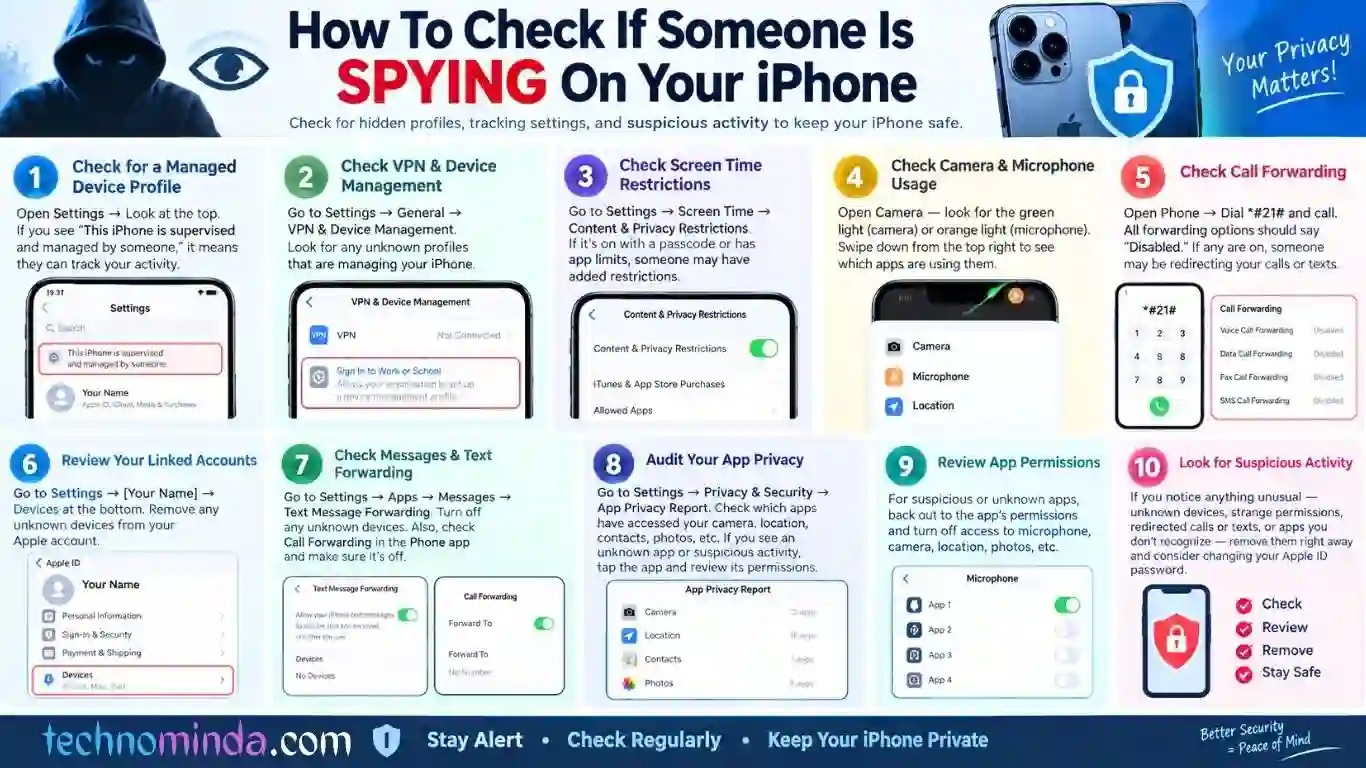
So, tap on settings app on your iPhone. And the first thing that you will check at the top of your settings is to see if it is managed by someone else. You can see it in the top of your settings before your profile image, it’ll say this iPhone is supervised and managed by someone. So, if you see that at the top of your settings, that’s an indication that they are able to track your activity.
However, if you don’t see Managing device restrictions that, that doesn’t necessarily mean something isn’t installed. So, tap on the general option and then scroll down to the bottom. Tap on VPN and device management. On here, you can see it says sign into work or school. And on here, if you tap on that, essentially, it allows you to install a device management profile.
If you see a profile on this list that is managing your iPhone that you don’t recognize, it was installed by someone else or maybe a company or school. Essentially, that allows them to limit the functionality of your iPhone and potentially spy on you. So, if you see that, just tap on it and try to remove that device management profile.
Next tap the back arrow again and scroll down, tap on screen time. And then scroll down and tap on content and privacy restrictions. If this is toggled on and there’s a screen time passcode on here and maybe there are certain restrictions on which apps you can and can’t use, again, potentially somebody has added this, maybe you know, maybe you don’t know, but they’ve added this to your screen time, essentially limiting the functionality and giving them access to certain things.
Now open your camera on your iPhone, you’ll see it pops up with the green light at the top right corner. That green light indicates your camera is currently being used. And if you hop out of here just for a second, you’ll usually see an orange light as well.
And you can always swipe down from the top right and tap on that at the top and it will show you exactly which apps use your camera or your microphone or your location. This gives you an indication if somebody is spying on you with your camera or your microphone without your permission if you haven’t opened up those apps and actually use those.
The next thing you have to do, check call forwarding, open phone app on your iPhone. Tap on the keypad and dial *#21# and hit call bottom. You’ll be able to see it says setting interrogation succeeded, call voice forwarding disabled, and then here it says data call forwarding disabled, fax call forwarding disabled, SMS call forwarding disabled.
Essentially, what you’re going to look for is everyone on this list, this entire list should say disabled, unless you have intentionally forwarded something. This basically checks to see if any of these are being forwarded to another service or another number.
The next task is Reviewing your linked accounts, so go back to your settings. From the beginning of your settings, tap on your name at the top. Scroll down to the bottom and check the devices at the bottom here. You can see there your iOS devices. If you see a device on here that you don’t recognize, make sure to remove it from your Apple account because they could have access to certain information.
Next, let’s tap the back arrow and make sure that any of your calls or text messages are not automatically being sent to another device. Tap on the apps button at the bottom. After you’ve done that, scroll down and tap on first messages on this list.
So, if there is messages. Just tap on that and then scroll down until you get to where it says text message forwarding and tap on that. If you see a device on here you don’t recognize, make sure to turn that off because it’s forwarding all of your messages to that other device.
The next thing you need to check call forwarding. So go back, tap on your phone app And then scroll down, tap on call forwarding. And if this is toggled on and it’s forwarding some calls to another device, make sure to turn this off or to check what phone number it is forwarding those text messages or calls to. So I would highly recommend turning that feature off.
Now you have to audit your app privacy, go back to the beginning of your settings and let’s check your privacy report. So, scroll down from here and tap on privacy and security and then scroll down again towards the bottom. You’ll be able to see it says app privacy report. Just tap on that.
This shows you all of the apps that are on your iPhone and what services they have used. Whether they’ve used the camera, your location, your contacts, your photos, all of that stuff.
Essentially, you’re looking to see if something looks sketchy on this list or if it’s an app that you don’t recognize. Look through this list. If you see an app on here that you don’t recognize or that you didn’t know that it should track your location or have access to your camera, etc., then you can always just tap on that app and to see exactly when it used your photo.
If you see an app on here that you don’t recognize or you don’t know why it’s contacting so much activity, network activity or web activity, tap the back arrow and then scroll up from here and choose what it has access too.
Tap on microphone. And if you find an app on here that you don’t want to have access to your microphone, all you need to do is toggle that app off to make sure you prevent access to certain things like your camera, your location, photos, etc.
I hope this article will really help you a lot. For technology, tech related best solutions and updates always keep an eye on TECHNO MINDA. Thanks, visit again.