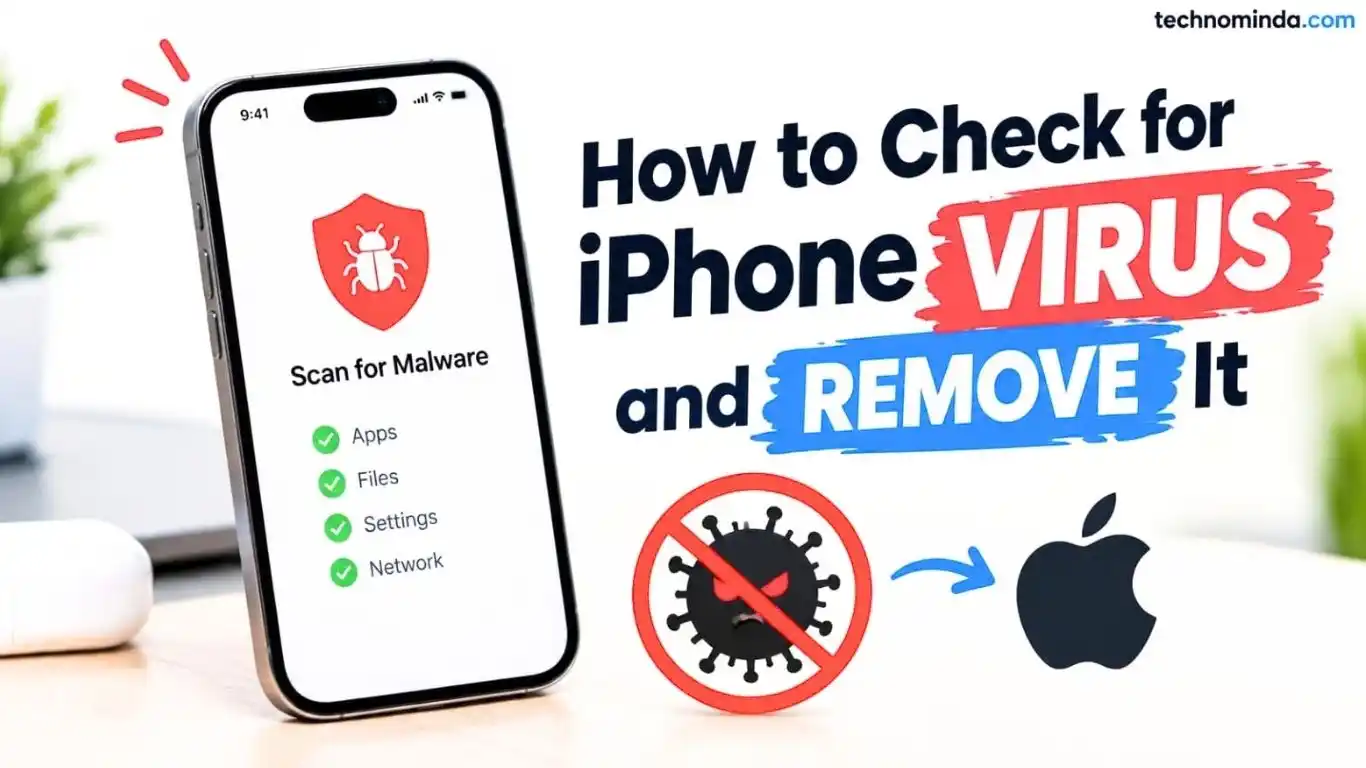
Is your iPhone suddenly feels slower than usual. You start seeing strange pop-ups in Safari, battery seems draining faster, or a website keeps telling you that your iPhone has a virus them you must need to check iPhone virus. Don’t worry, this guide will help you to check f your iPhone has a virus and if it does, we’re going to completely delete it here.
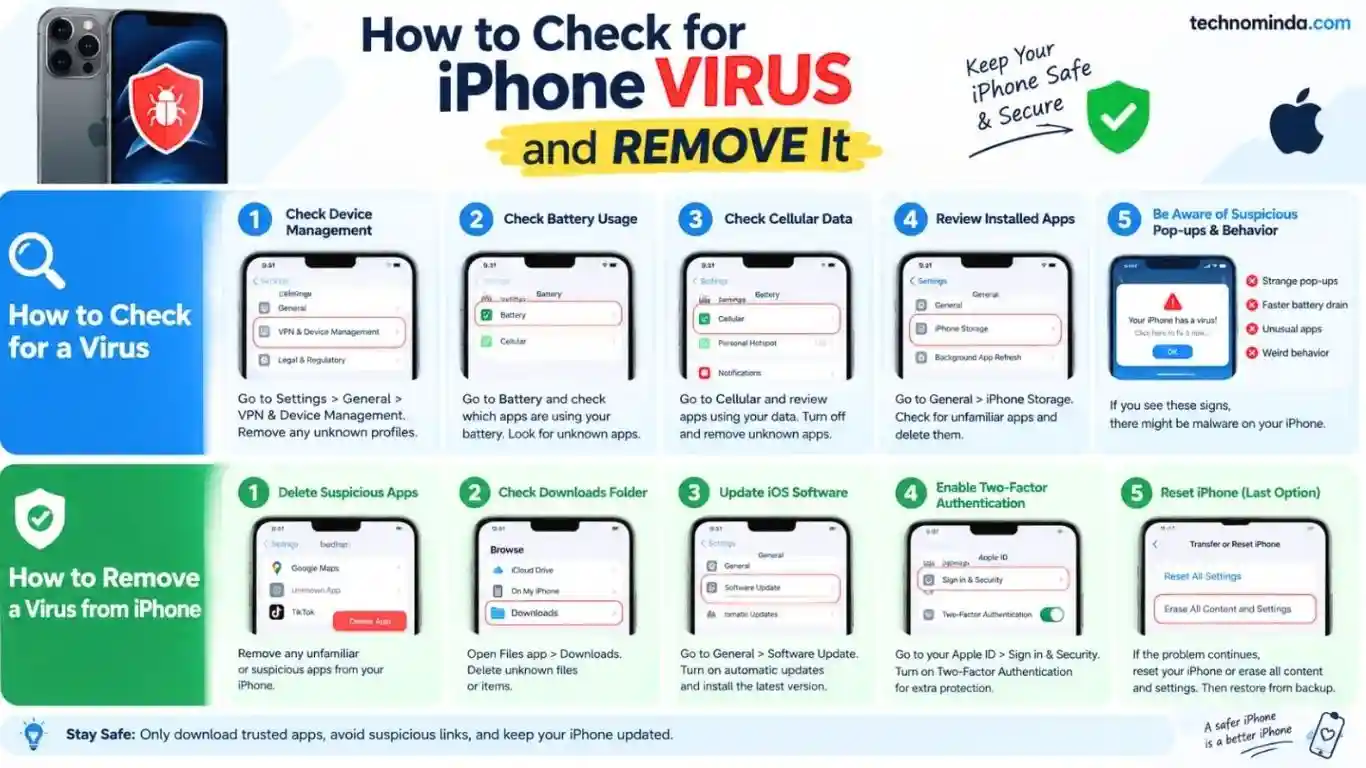
Now, first just open settings app of your iPhone. Let’s check a couple things to see if you have a virus. So, first we’re going to tap on general and open that up. And now within general, we’re going to scroll down. You can see towards the bottom here, you can see VPN and device management.
A lot of times a virus might install a device management profile. So, let’s tap on Monitor battery usage that VPN and device management. And if you have a profile on here that says something that you don’t recognize, not your work or your school, then just tap on it and delete it.
The next thing that we’re going to do is tap the back arrow and back again. Now, at the very beginning of your settings, let’s check two different places to see if certain apps that could have malware or a virus are using either your battery or your cell service.
So, let’s tap on battery Monitor cellular data here. And once we’re in battery, you’ll be able to see all of the apps that are using your battery today. If I scroll down a little bit, you’ll be able to see I can tap on view all battery usage. And you’re going to check your battery usage by app. Again, scroll down and make sure all of these apps are apps that you recognize and you actually turned on and used today.
And then go back in time a couple days to see if there are any apps you don’t recognize on this list. If there are apps on there that list, we’ll walk through how to prevent them. Now, let’s hit the back arrow and back again. Review installed apps Now, it could potentially not be using your battery, but it could potentially using your data if there’s a malware or malicious app.
Now, from here, let’s tap on cellular again from the beginning of your phone settings. And then scroll down and keep scrolling down. You can see it says cellular data period. And you can see the current period. I’m using 4 GB. And it will show you all of the apps that are using your cell data.
Again, if you see any app on here that you don’t recognize, make sure to hit the show all and then just go through this entire list. If you don’t see any on here or you do see any on here that you don’t recognize, make sure to turn this off and we’ll go through the process of identifying it and deleting it. Now, go back to your settings. tap on the general option bottom. Again tap on iPhone storage option. This will show you every single app that is on your iPhone.
I would encourage you to look through this entire list to see if any of these apps you don’t recognize. And you can always tap on size and instead go to last used date. This shows you should show you just the apps that you used recently. If it shows you apps that you don’t recognize that you haven’t used recently, then make sure you tap on that app, let’s say Google Maps in this case, and then just tap the delete app button.
Now, after we’ve gone through these steps on how to identify if you might have a virus on your phone, let’s go through the steps on how to delete a virus if you suspect there is one. The first thing, of course, is to delete these apps. and I’m going to walk you through a few other ones.
Now, the next thing we’re Update iOS software going to do is actually hop out of this settings app and we’re going to open up the files app on your iPhone. Go to the app library or swipe down and search for the Files app. If you tap on browse a couple times, you’ll get to this screen and tap on it and then tap on downloads. Let’s check to make sure there’s nothing in that downloads folder that you don’t recognize.
If there is, you can tap those three dots at the top right and then choose select. And then you can select one or multiple different ones and then just hit the trash icon to delete that item from your phone if you suspect there’s any virus in a file that has been downloaded onto your iPhone.
The next thing you need to Enable two-factor security, go back into your settings. Within your settings, go back to the beginning. At the very beginning, one of the easiest ways that you can prevent any virus on your iPhone is to tap on the general option here. And then from here tap on software update.
A lot of times, software updates have bug fixes as well as any kind of patches for viruses or malware or any sort of susceptibility in the iOS operating system. So, I would highly recommend tapping on automatic updates and make sure that is turned on. In addition to that, you can always get into beta updates as well and turn on beta updates if you wanted to.
Now, go through the process of updating your phone to the latest version, but let’s do some other things to make sure that we remove a virus on your phone.
Now, let’s go back Reset iPhone settings of your settings. The next thing that you can do if you still suspect you have a virus is to tap on your name at the very top. And then from here, we’re going to tap on sign in and security. And you’ll be able to see two factor authentication. Just tap on that. Make sure to turn on two-factor authentication.
This will help prevent if there’s any malware on your iPhone from them gaining access to various things on your iPhone and starting to control it or steal your passwords. Make sure to turn this on and have a phone number or a device that has a two-factor authentication on there.
Now, let’s go back out of here to the beginning. The last thing that you can do if you still suspect there’s a virus on your phone and that didn’t get rid of it is to tap on the general button towards the bottom here.
And now go to transfer or reset iPhone. And from here, you can either choose to hit reset and reset all of the settings, which is a first good option that essentially will reset those settings if a virus or something has messed up the settings in your phone.
However, you can also go to erase all content and settings. It will go through the process of erasing the entire iPhone. It’ll sign you out of your Apple account. It will remove the find my activation lock and it will delete the eSIM.
After go through this process, you need to restore your iPhone from your latest backup. So, make sure you have backed up your phone and then essentially it will delete out any known viruses or malware on your iPhone.