You see something on your Windows computer that you want to screenshot on windows and save it. Maybe it’s an order confirmation, a funny message, a useful part of a webpage or an error that you need to show someone. The best solution is taking a screenshot.
Windows has built in screenshot tools for years, but there are several different shortcuts and they don’t all work the same way. Some capture the whole screen, some let you choose an area, and others save the image automatically.
Here’s how each method works and when to use it.
1. Press Windows + Shift + S
For most situations, this is a useful shortcut I’d start with. Just press Windows + Shift + S. Your screen will become slightly darker, and a small menu will appear at the top. You can then select the part of the screen you want to capture.
You can usually choose from options such as,
- Rectangular snip
- Freeform snip
- Window snip
- Full-screen snip
If you’re trying to grab just one section of a webpage, for example, select rectangular option and drag over that area. Windows copies screenshot to your clipboard. A notification may be appear, that allowing you to open your image in Snipping Tool for editing. This shortcut is too useful because you don’t need to capture your full screen.
2. Press the Print Screen Key
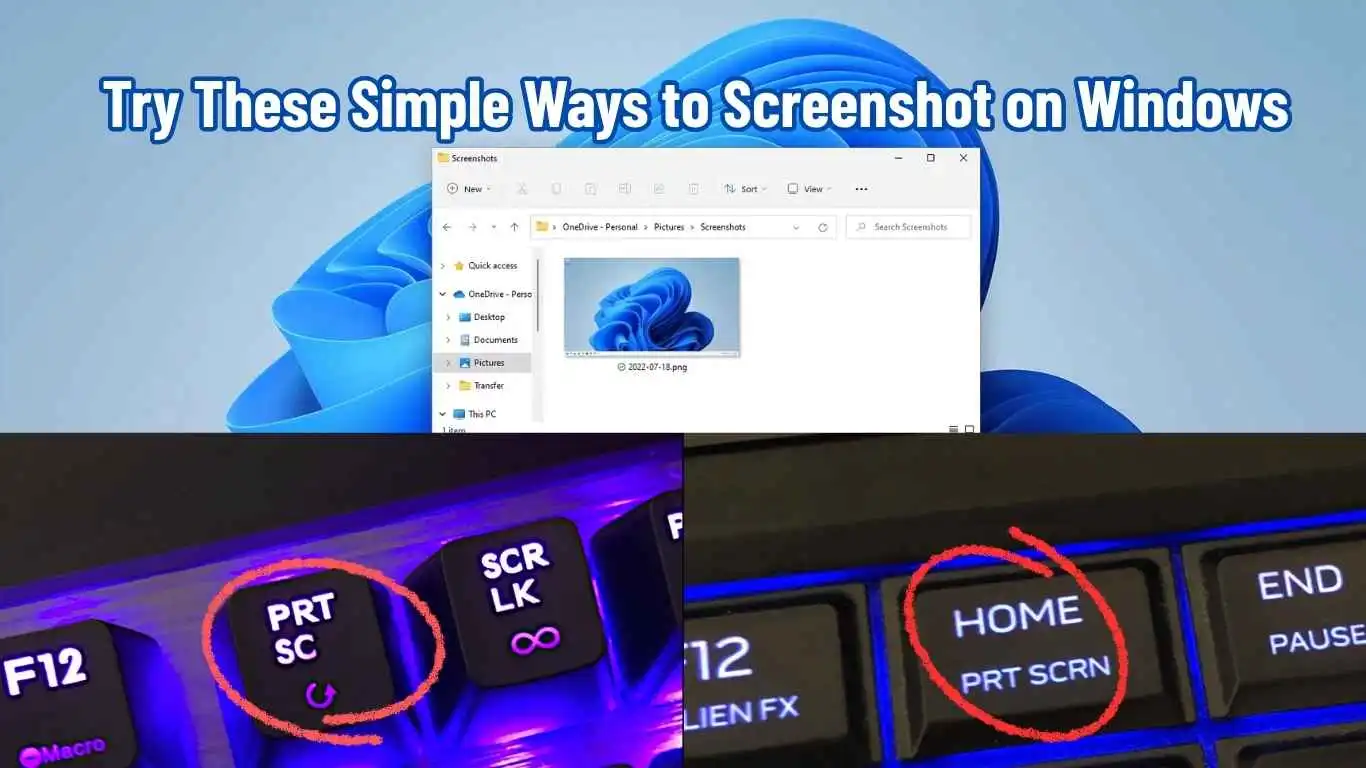
The Print Screen key is another straightforward option. Depending on your computer keyboard, it may be labeled PrtSc, PrtScn, or PrtSc SysRq. Pressing it captures your screen and places the image on your clipboard.
Now open Paint, Word, an email or another app that accepts images and press – Ctrl + V. The screenshot will appear there. From Paint, you can crop your image or make a few basic changes before saving it. On some laptops, Print Screen key is combined with another function. In that case, you may need to hold your Fn key while pressing it.
3. Automatically Save a Screenshot With Windows + PrtSc
If you don’t want to paste your screenshot into another program every time, there’s a shortcut for that too. Press Windows + PrtSc. Windows captures entire screen and saves the image automatically.
You’ll generally find it under Pictures then Screenshots. This is convenient if you’re taking many screenshots in a row and want each one saved as a separate image.
4. Capture Only the Current Window
Let’s say you have a browser, a file folder and several other programs open, but you only want a screenshot of the window you’re currently working in. Press Alt + PrtSc. This captures your active window rather than entire desktop. The screenshot is copied to the clipboard, so you’ll need to paste it into Paint, Word or another application using Ctrl + V. It’s a simple way to avoid showing everything else that’s open on your computer.
5. Use the Snipping Tool
If you prefer clicking instead of remembering any keyboard shortcuts, Windows has Snipping Tool option. Open your Start menu and search for Snipping Tool. Once this app is open, start a new screenshot and select the part of the screen you want to capture.
The advantage of using the Snipping Tool is that you can capture an area and then work with that image immediately. Depending on your Windows version, you can make annotations, crop that screenshot and save or easily share it from there.
6. Take a Screenshot With Xbox Game Bar
Windows also includes a screenshot option through Xbox Game Bar. Press Windows + G, this opens the Game Bar overlay. From there, you can use capture controls to take a screenshot. There’s also a direct shortcut, Windows + Alt + PrtSc. This is actually aimed at capturing games, but it can also be useful in other situations where Game Bar is available.
7. How to Screenshot on a Windows Laptop
Laptop keyboards can make things slightly confusing because manufacturers don’t always place Print Screen key in the same spot. If your laptop has a PrtSc key, try Windows + PrtSc. If it doesn’t work, try Fn + PrtSc, you can also use Windows + Shift + S. Last option easiest because you don’t have to worry about whether your laptop need a Fn key.
Where Does Windows Save Screenshots?
It depends on which shortcut you use on keyboard. When you press Windows + PrtSc, Windows normally saves your screenshot automatically in Pictures or Screenshots. With PrtSc or Windows + Shift + S, your captured image is generally placed on clipboard. You can paste it somewhere you want with Ctrl + V. So if you’ve taken a screenshot but can’t find image file, check whether you simply copied it to the clipboard instead.
How to Screenshot Just Part of Your Screen
You don’t always need a picture of everything that’s on your monitor. For a selected area, press Windows + Shift + S, Choose rectangular selection and drag over the part you want.
For example, you could use this to capture-
- A specific section of a webpage
- An error message
- A table
- A photo
- A paragraph from a document
- A section of an app
It’s usually faster than taking a full-screen screenshot and cropping it later.
How to Take a Screenshot Without Saving a File
Sometimes you just need to send an image somewhere you want and don’t need a permanent copy. Press PrtSc, then open that app where you want to put your screenshot and press Ctrl + V. Your image can be pasted directly into many emails, documents, chats and image-editing programs. There’s no need to save your screemshot a separate file first.
What If Print Screen Isn’t Working?
If you press PrtSc and nothing seems to happen, don’t assume that screenshot failed. Try Windows + Shift + S. You can also try Fn + PrtSc, if you’re using laptop. Another option is to open Start menu and launch Snipping Tool manually.
One thing that can be confusing, some screenshot shortcuts don’t immediately create a visible image file. They may simply copy your capture to your clipboard. In that case, open Paint and press Ctrl + V to see whether your screenshot is there.
Windows Screenshot Shortcuts at a Glance
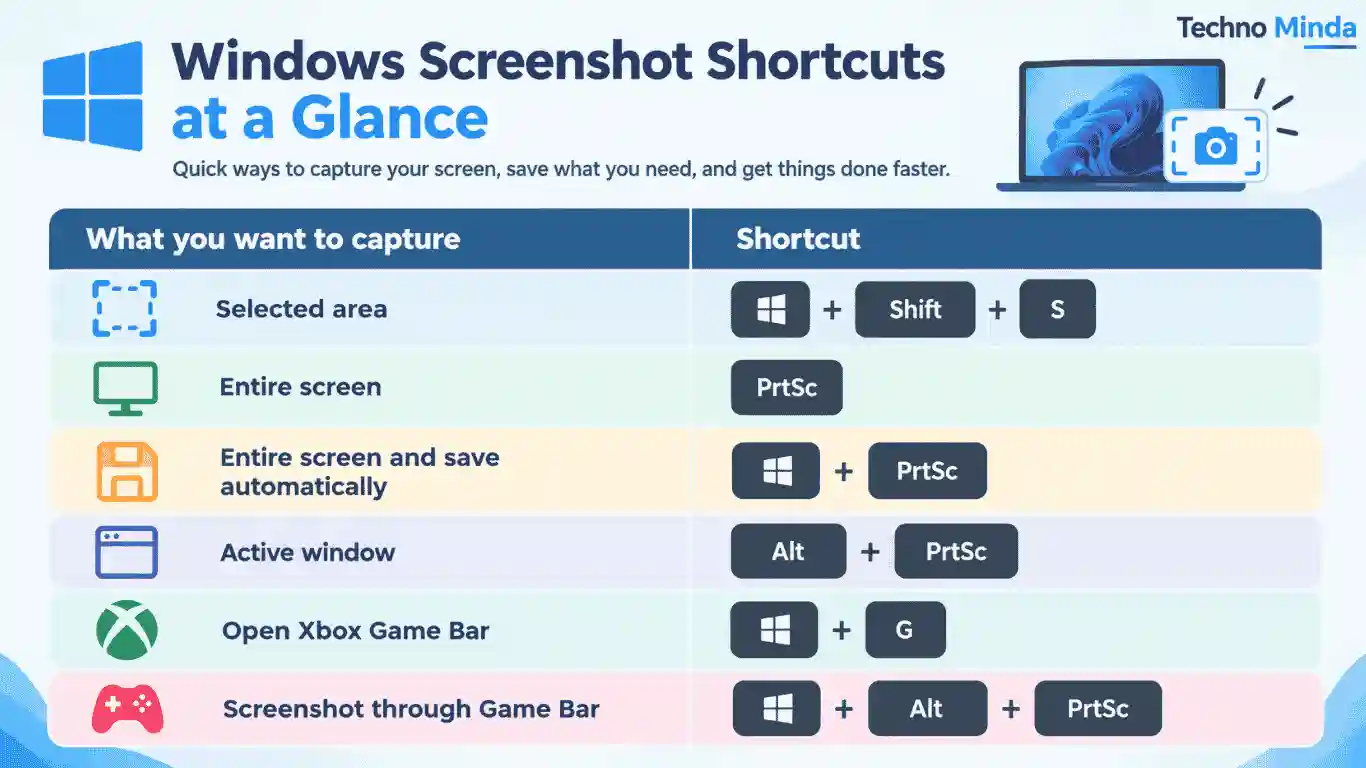
There isn’t one screenshot shortcut that works best for you in every situation. If you only remember one, remember Windows + Shift + S. It lets you choose exactly what appears in the screenshot, which is useful for your everyday tasks.
For screenshots you want Windows to save automatically, just use Windows + PrtSc. And if you’re working with a particular application, then Alt + PrtSc can save you from capturing the rest of your desktop.